PDF conversion
Invert PDF Colors
Published May 29, 2026
Most PDFs still look like paper: white background, dark text, fixed pages. That is fine in daylight. It is less fine when you are reading a long document on a bright screen at night.
To invert PDF colors is to turn that paper-like page into a darker version that is easier to read on screen. The useful version is not a harsh photo-negative effect. It is a dark mode copy that keeps the page understandable.
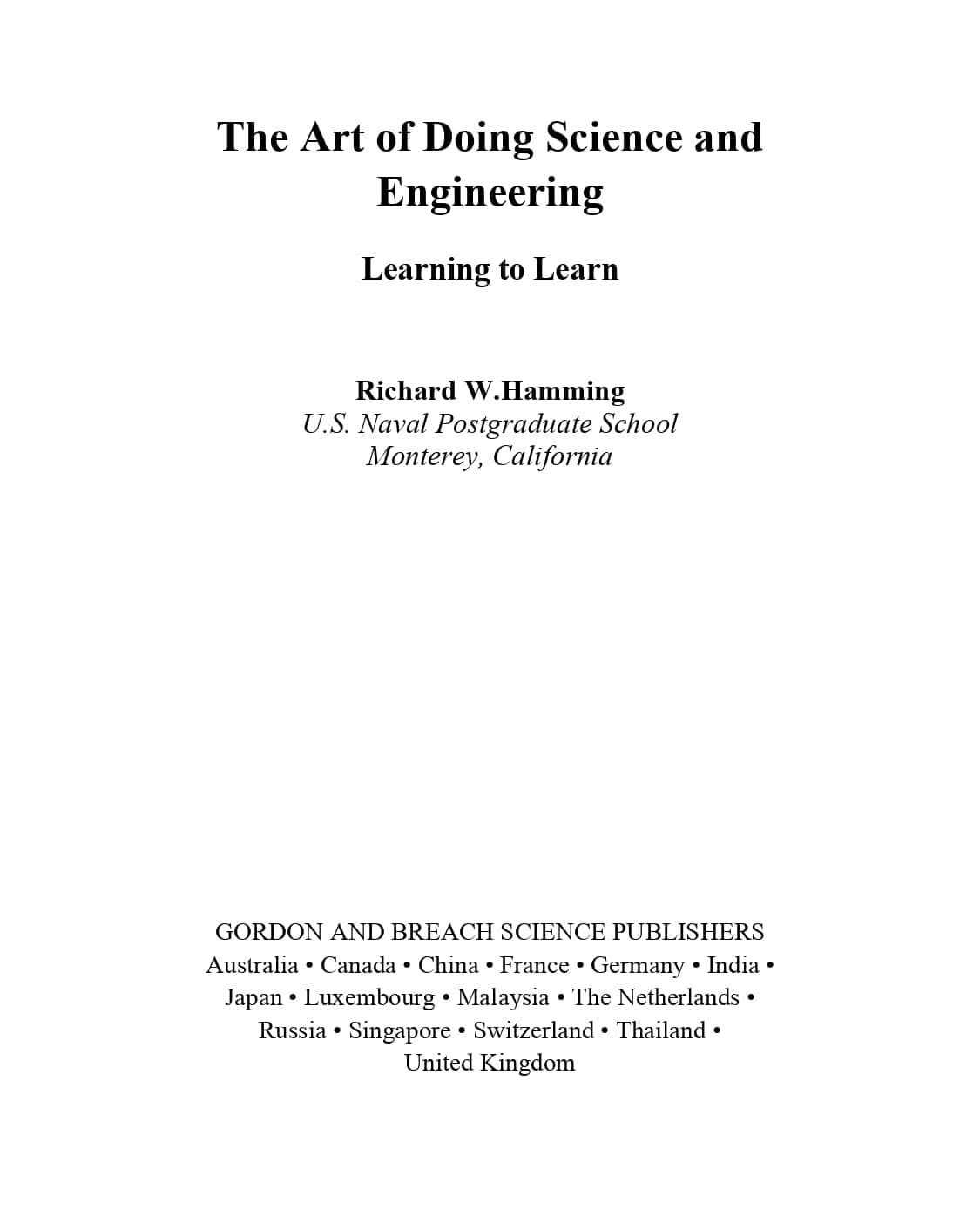
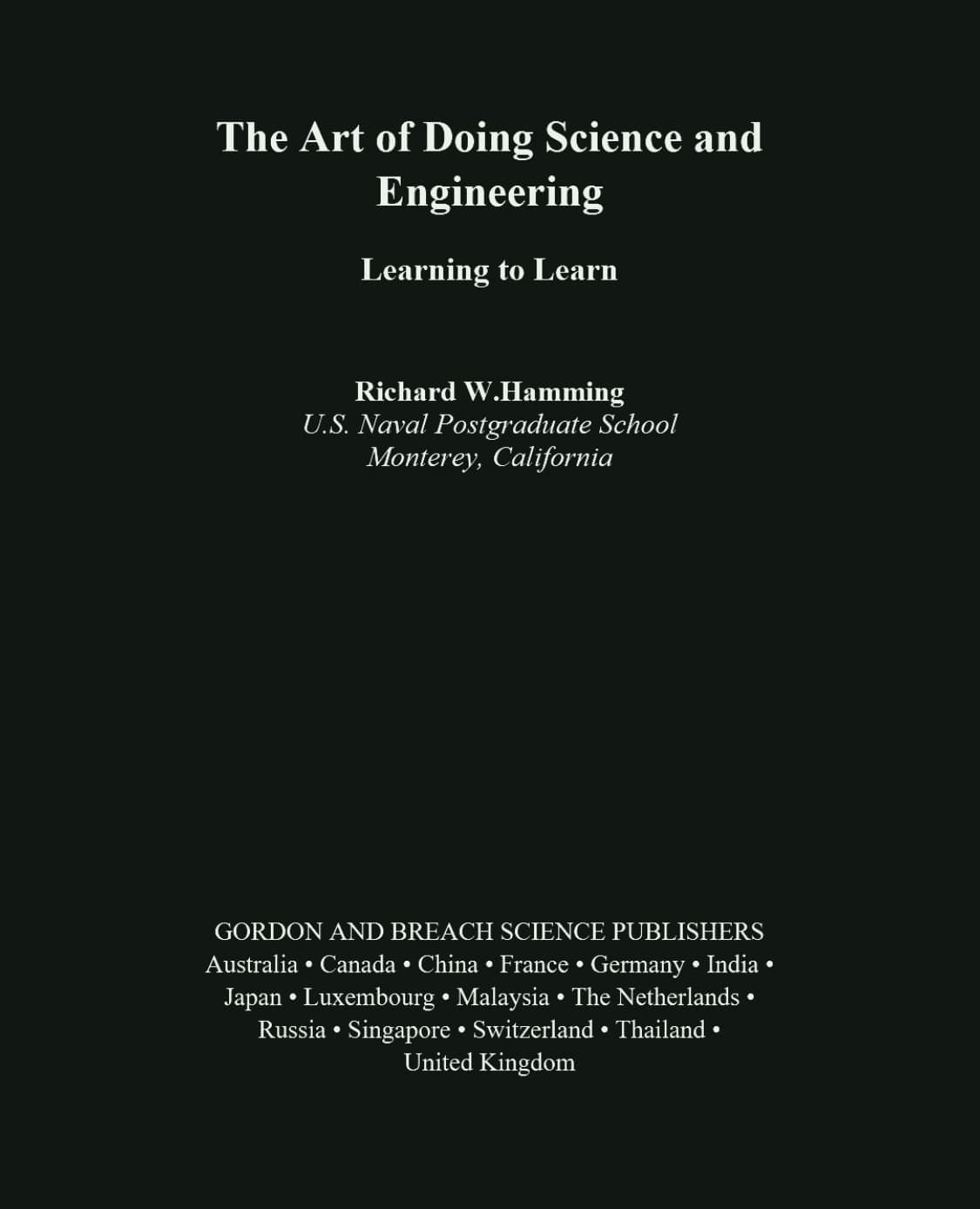
What Does Invert PDF Colors Mean?
In simple terms, it means changing a light PDF into a darker PDF. A white page becomes a dark page. Dark text becomes light text. The document should still look like the same document, just with a more screen-friendly color scheme.
A good PDF color inverter does more than flip every pixel blindly. Images, charts, tables, and scanned pages can look strange with a raw inversion. A better approach is to remap the page into a readable dark theme.
When Does It Help?
It makes sense when you want a dark version of a bright PDF and you want to keep that version. Maybe you are reading at night. Maybe the document is long. Maybe you want to move it to another device without setting up a reader again.
It is less ideal when the file must keep editable forms, links, annotations, or perfectly accurate image colors. In those cases, a reader view may be better than creating a converted file.
How to Invert PDF Colors from Light to Dark
The basic workflow is short: choose a PDF, pick a dark theme, preview the first pages, then convert and download. You can invert PDF colors online in the browser without installing a desktop app.
Preview matters. A PDF with plain text usually converts cleanly. A PDF with diagrams, screenshots, or scanned pages needs a quick look before you process the whole file.
Pick a Theme Before You Download
Not every dark PDF should be pure black. Softer themes are often more comfortable for long reading and less likely to make images feel too harsh.
- Green is calm for text-heavy PDFs.
- Warm is good for night reading.
- Charcoal gives the most traditional dark mode look.
What Happens to Text, Images, and Layout?
The converted PDF is designed to keep the visual page layout. That helps with scanned PDFs, tables, and pages where the position of the content matters.
The tradeoff is that a downloaded dark mode PDF may not preserve selectable text, search, links, forms, or annotations. The page can be rendered into a dark version, which is useful for reading but not always ideal for editing.
If you only want to read in dark mode and adjust font size, use the PDF dark mode reader instead. Text reading mode can extract selectable text and make it easier to read without creating a new file.
Reader or Converter?
| Goal | Better choice |
|---|---|
| Read now without saving a new file | Reader |
| Make selectable text larger | Text reading mode |
| Save a dark copy for later | Converter |
| Move the dark PDF to another device | Converter |
Need to Go from Dark PDF Back to Light?
This guide is about moving from a bright PDF to a dark mode PDF. If you already have a dark PDF and want a lighter version for printing or daytime reading, use PDF Light Mode.
FAQ
Can I invert PDF colors for free?
Yes. You can use a browser-based PDF color inverter to create a dark version locally.
Does color inversion keep the PDF layout?
It is designed to keep the visual layout. That is useful for scanned pages, tables, and fixed-layout documents.
Will the converted PDF keep selectable text?
Not always. Some conversions render pages into dark images, so selectable text and search may not be preserved.
Is my PDF uploaded?
No. Reading and conversion are designed to run locally in your browser.