iPhone reading
PDF Dark Mode on iPhone: Read, Adjust Text, or Download
Published May 25, 2026
The hard part of reading a PDF on iPhone is not only the white page. It is the combination of a bright page, a small screen, and text that was designed for paper instead of a phone.
PDF dark mode on iPhone should do more than tint the screen. For some files, you need a darker page. For others, you need bigger text. And sometimes you need a dark PDF you can save to Files and open later.
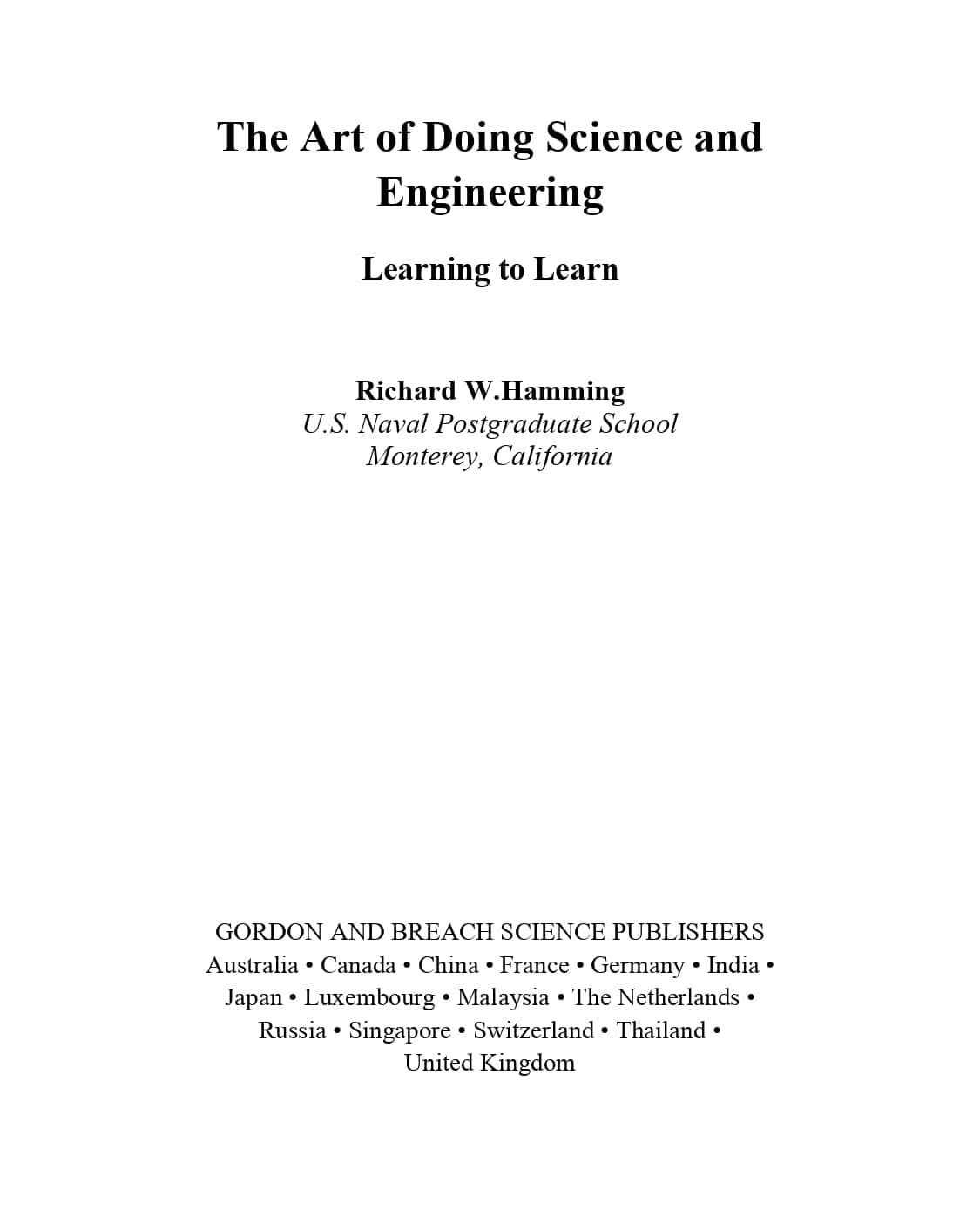
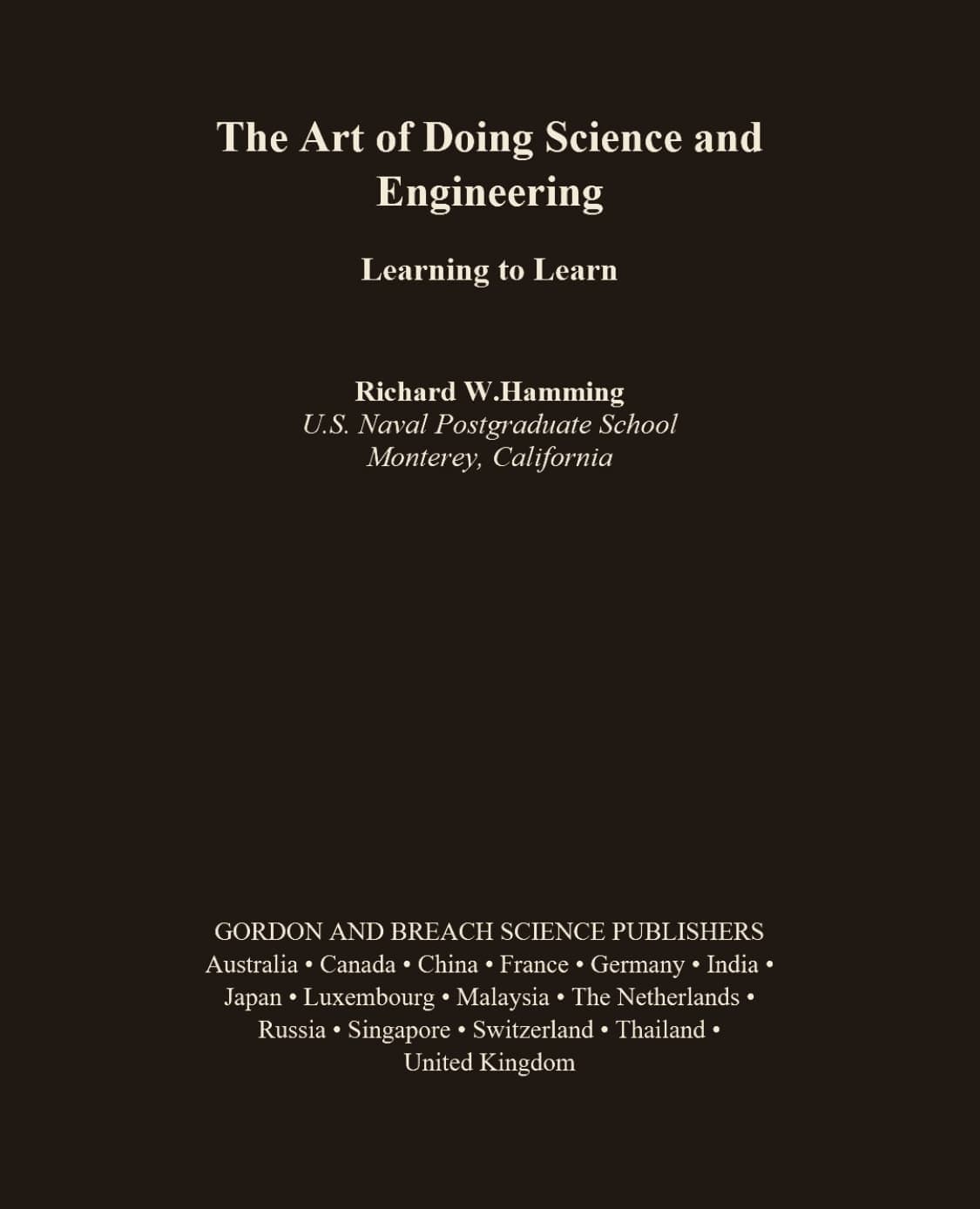
Quick Answer: Choose the Right iPhone Workflow
If you want to read PDF in dark mode on iPhone right now, open the file in a browser reader and use page color mode. It keeps the original PDF layout and changes the reading surface.
If the PDF has selectable text and the words are too small, use Text reading mode. It can extract text and let you adjust PDF font size on iPhone, which is often more useful than zooming the whole page.
If you want to keep a dark copy, convert PDF to dark mode on iPhone and download the result. That gives you a file you can save, send, or open in another app.
Why iPhone Dark Mode Does Not Always Change PDFs
iPhone Dark Mode changes the system interface and many app screens. A PDF is different. The page background, text, images, margins, and layout can be drawn inside the PDF itself, so the page may stay bright even when Safari and iOS are dark.
That is why PDF dark mode on iPhone works better when the reader handles the PDF page directly. Page color mode renders the page and remaps the colors, instead of only changing the browser around it.
Method 1: Read PDFs in Dark Mode in Safari
Open the PDF dark mode reader in Safari, choose a PDF from Files, iCloud Drive, or Downloads, and read it with a darker page theme. The file is processed locally in the browser tab.
This is the best first step for scanned PDFs, image-heavy pages, tables, and documents where the layout matters. You get a dark reading view without editing the original PDF.
Method 2: Make PDF Text Bigger on iPhone
A dark page is helpful, but fixed PDF text can still be too small on an iPhone. If the document has selectable text, Text reading mode can pull the words into a cleaner reading view.
From there, you can adjust PDF font size on iPhone, change line height, and choose a different font. For long reports, ebooks, and articles, this can feel much better than pinching and zooming every page.
This mode is not meant for scanned PDFs. If the PDF is just an image of a page, use page color mode instead.
Method 3: Download a Dark Mode PDF on iPhone
Use the converter when you want the dark version to stay with the file. The invert PDF colors on iPhone workflow lets you preview the first pages, pick a theme, and download a dark mode PDF locally in your browser.
This is useful if you want to save the file to Files, move it to another device, or open it in a different PDF app. It is also the better option when you do not want to set up the reader again later.
One tradeoff: converted PDFs may not keep selectable text, forms, links, or annotations because pages can be rendered into dark page images. Check the output before relying on it for important documents.
Reader or Converter?
| iPhone task | Best choice |
|---|---|
| Read a PDF once in Safari | Page color mode |
| Make small text easier to read | Text reading mode |
| Read scanned or image-heavy PDFs | Page color mode |
| Save a dark PDF to Files | Converter |
Which Theme Works Best on iPhone?
Warm is usually the easiest first choice for night reading. Green is comfortable for long text. Blue gives a cooler look. Charcoal is the closest to a classic night mode PDF view.
The best theme is the one that lets you stop noticing the page color and keep reading. If a theme feels too contrasty on your phone, switch to a softer one.
FAQ
Can I use PDF dark mode on iPhone for free?
Yes. You can open a PDF in Safari and read it with a dark page view for free.
Why does iPhone Dark Mode not change my PDF?
Because the PDF page is often rendered as its own document surface. iPhone Dark Mode can change the app interface while the PDF page stays white.
Can I make PDF text bigger on iPhone?
Yes, when the PDF has selectable text. Text reading mode can extract the text and let you adjust font size and line height.
Does this work with scanned PDFs?
Scanned PDFs usually work best with page color mode. Text reading mode needs selectable text, so it is not the right mode for image-only scans.
Can I save a dark mode PDF to Files?
Yes. Use the converter, download the new PDF, and save it from Safari to Files or another location on your iPhone.
Is my PDF uploaded?
No. Reading and conversion are designed to run locally in your browser.